Hello everyone! With you - Andrew Krivulya Charly and this is
a continuation of the course about Redshift - Chapter 2.
In it we will talk about the light sources,
about how to decrease the noise in interiors,
about volumetric illumination from a window, and also how to
do a quick render of awesome caustics.
Let's Go!
So, let's open the 3ds max.
Choose a Redshift render.
Create a plane of arbitrary size and the other objects,
to create in the scene an interesting shadows.
Next - create a physical camera.
Adjust the angle and press CTRL + C to apply it to this camera.
Go into the light sources and drag the first physical into the scene.
Set it direction in relation to objects.
Put a smaller resolution ...
For our tests it will be enough 1280*720px.
Assign a standard Redshift material.
In the render settings, in GI - put BruteForce / Irradience Point Cloud method.
The remaining settings are left by default.
Then press 8 and remove the preset for
the exposure, so that Redshift doesn't make warning about the tone mapping
and proceed to the lighting settings.
I'll give the camera a bit to see the light source.
Select it and go to the settings.
So, the first parameter you will see in
the settings - a light type.
Type of light source.
There are four of them.
Area, Point, Spot light and Directional.
Let's start with Area light and its settings.
By the way, if you pay attention - then the all parameters for all types
of the physical light - are identical.
In each source - you can adjust the size
In the intensity tab - you can choose the lighting mode using the color or
a temperature settings.
Let's turn on the IPR so that we can immediately see the change and continue.
With a color parameter - you can change the color of the light source.
Switching the mode to temperature, you can set the temperature.
For example 3600 for a warmer shade and 8000 for a colder one.
In the color map - you can load any map to get the effect of Gobo
or an interesting lighting with a gradient.
To load a gradient - open the editor of materials by pressing M.
Then go to the maps and select
standard gradient, which drag into the color map slot.
In the settings set the colors in such a sequence - green, red and blue.
In the end, we get an interesting lighting.
With changing a colors - you can achieve an interesting result.
About the effect of Gobo - I talk a little later.
Go ahead.
Next is the setting of the unit type, which allows you to specify the physical units
which are used to adjust the intensity of light.
Here, nothing complicated - just choose the units you need
and adjust the intensity parameter.
After it you will see the tab which named - Ray Contribution,
in which you can turn on and off the effect of lighting on diffuse or specular.
as well as - matte shadow
for compositing and of course, separately adjust the degree of influence
on diffuse and reflection
by using diffuse scale and glossy scale parameters.
Next is the Decay tab, in which you can adjust the attenuation of light.
I don't recommend changing this parameter, because inverse square - is physically correct.
Is that, you can change the settings - for some specific tasks.
Then comes the Area tab, in which you can exclude the light source from the renderer
with the visible option.
Also you can turn on the lighting in both directions - by the option bi-directional.
Normalize the intensity with
Normalize intensity parameter, thereby turning off the dependence of size on intensity.
If you turn off this option and increase
the scale of the source light, then the intensity will increase.
If you turn it back on - the light area will be excluded from calculations of illumination.
Also you can change the shape of the source - using the Shape parameter.
There is a rectangle,
a circle,
sphere, cylinder and mesh.
Once you select a mesh, the pick mesh button becomes active,
with which you can specify any object.
thereby using it in as a source of lighting.
I think you noticed that when using gradient lighting and changing
the shape of the light source - we have the different effects.
For example, if you will select a sphere and rotate it -
then you can get a different lighting.
Next in the settings are samples,
about which we have already spoken in the first chapter.
Increasing of this parameter removes the noise in the shadows.
And if you have some complicated mathematical objects - sometimes
you have to put 1024 samples, and sometimes even more.
But there is good news.
Soon there is a denoiser from Nvidia and then it will be possible to lower sampling without losing quality.
Next are the settings for spotlight, which become active when you select
of the given light source.
Once you chose a spot - immediately increase the intensity.
Cone Angle is responsible for the width of the beam of light,
and Falloff Angle - responsible for the attenuation of light at the edges.
That is, you can manage them clarity, when volumetric light is turned on.
Next is the setting of the shadows.
You can turn on or off them.
Make transparent using a transparency parameter.
With Softness - adjust their softness and with sampling to influence on the quality.
Softness Affect Gobo provides a soft textures projection for this effect.
Just now we talk about it.
If in Google - write Gobo Texture -
then you will find a bunch of textures that you can use to create this effect.
In real life - also a special filter is used
to get the interesting shadows or highlights.
To get started - let's download the textures
with a shadow from the trees and some kind of effect.
Next, open the material editor and load any of the saved textures
in the ColorMap slot.
In the end, you get the projection of this mask.
For the Gobo effect, you can use any picture.
There are not any boundaries for your creativity.
Be it a shadow, some pattern or color image.
You can also increase the intensity of the image itself in the output image settings
and by this -
get a more pronounced projection.
Also with the help of this effect - it is possible to simulate a caustic.
Let's write in Google - Gobo Caustic and download
of any of the pictures.
Then load it into color map and setup the tiling.
In the end, we get a fake caustic.
Next is the Viewport ROE parameter - so called Viewport Radius of effect, which
controls the power of spreading the shadow in the viewport.
The smaller value - will lead to more accurate shadows,
but they will be limited by a smaller radius around the axis of the direction of light.
Note that this applies only to the shadows in the viewport, not to the final render.
Personally, I never used it, but since it's here there is - it means someone can come in handy.
And by the way, it works only with a directional light.
Next is the Volume tab, in which there are two parameters.
The first is responsible for the visibility of volumetric light, and the second for its quality.
I personally use this effect only with a spot and point light.
To make the effect work -
you need to press 8 and in the atmosphere - add the redshift volume scattering,
Now, if you change the value of contribution scale - volume effect will be more or less pronounced.
I recommend to increase the volume sampling, like as = 512 or even 1024.
With spotlight - you can get volumetric light from a flashlight or headlights.
The last Photons tab is used for a physically-correct caustic and about it
we'll talk later, and now - I'll show the next light source type settings in Redshift.
This is IES.
Choose this light source and put it in the scene.
Then make a copy of it and move it in this way.
Now that the IES is working, I will download a special
file - which I will create in the IES generator app.
Now it doesn't matter - what form they will be, so I'll do it
arbitrary for each of the sources.
And upload by using a Profile button.
Now If you will press the Render and you will have this result.
IES has the same settings - like at the previous light source.
An only unique parameter is Viewport Scale, which allows
adjust the size of the source in the viewport.
So then don't get confused in a lot of them.
Each IES source changes its form relative to the loaded profile and it is very convenient.
If you will turn on the volume effect with using contribution scale -
then you get a pretty steep result.
As you already know, an exception of the light source from the volume light
is performed by turning off the same parameter.
Volumetrics in Redshift work very quickly.
Let's increase the number of IES and objects.
In the settings immediately put 1024 samples on volume in the sample override.
And in the System let's increase the size of the buckets.
And select the Hilbert method.
I will say Immediately that I'm doing a render on my GeForce GT 1030,
but also show this render on
one 980 TI and four 1080 TI.
but anyway, even on my video card - all of this will be rendered pretty quickly.
and assume, if in the same - Vray. Corona or Arnold
try to render this scene - then the time will increase 3-4 times.
There is certainly a minor disadvantage in Redshift.
When you have a lot of volumetricists - sometimes it is difficult to remove the noise.
But it's promised to fix it with Nvidia Denoiser.
But again - it all depends on your attitude to noise.
For example, in the cinematic shots - on the contrary, they add the small noise that will be
in Redshift - I think you won't be embarrassed.
So, click on Render and look at the time.
So, the picture was rendered for 6min9sec on one GT 1030.
If you increase it by 100% - then you notice that there is practically no noise.
He is barely noticeable.
Therefore, 1024 samples are sufficient for such a picture,
but when you have some kind of complicated explosion, smoke or something from the simulated
volumetrics - I recommend increasing value of BruteForce Num.Rays up to 512
for better quality.
So, 6 minutes for such a picture on one GT 1030 is an excellent result.
Since compared with other renderers, as I said - this time will increase by 3 times.
Now let's see how many time this picture will be rendered on 3 * 1080Ti
So, with the same settings - a picture rendered for 33 seconds.
As you can see, if you have enough powerful videocard -
then scenes with volumetric will be rendered very fast.
Let increase the number of light sources and change the color of some.
Then click Renter ...
and the result was 45 seconds.
Now I'll check the rendering on one 980Ti
So - the picture was rendered for 2min20sec,
that is 3 times faster - than on one 1030
and slower by four times than on three 1080Ti.
Go ahead...


 For more infomation >> 【LoV4】アカズキンとアマゾネス姉妹② - Duration: 11:50.

 For more infomation >> Affaire Nicolas Hulot : pourquoi les révélations du magazine "Ebdo" sont critiquées - Duration: 11:37.
  For more infomation >> LEGO® Ninjago® High Spee...
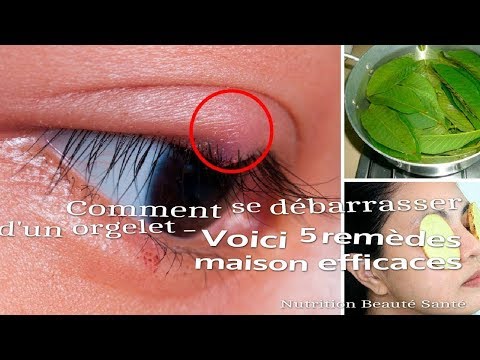 For more infomation >> Comment se débarrasser d'un orgelet Voici 5 remèdes maison efficaces - Duration: 3:16.

 For more infomation >> Comment apprendre en permanence ? - Duration: 5:09.
  For more infomation >> {Top Santé} 8 Choses que vous ne savez pas sur les fraises - Duration: 4:13.
  For more infomation >> Responsabilità Rspp: quando va 3 volte l'anno dal cliente - Avv Zaniolo Ing Delaini - Duration: 2:04.

No comments:
Post a Comment