Hi it's Rudy for CG Thoughts
today we are going to see
how tissue addon
can help us to make custom tiles in architecture scene
like that or that
why is it interesting ?
I don't like to rely exclusively on library
I want to do what I want.
Make the wall
the recess, patterns
cover with pattern
and for finish the shader.
We go to
8 steps in Blender.
Discover our starting scene
Only 3 objects in this scene
The celing, the ground and 2 walls
Make the wall, which we will slick the pattern
I select my walls
I go to edit mode
I enable snap
on increment
Extrude with E and Y or E and X
I finish my wall with successive extrusion
E and X, E and Y
Y and not X (^_^)
Now the room is closed
Check the interior
All it's ok
I'm going to separate my previous construction
I select faces, I press P
chosse selection
Now we have a new object
this is a part
where we will stick our pattern.
I'm going to change ceiling and walls transparency
for more comfort
with this tips we can see in the room.
I'm seeing normals aren't in true orientation
they are dark
so I'm select them and i flip normals
with flip direction.
all it's ok for the next step.
Step 3 : cut the wall to uniform faces
I go to edit mode
and I use Loop cute tool
Ctrl + R + mouse wheel
for cute the wall
my objective is to made uniform faces
becasue Tissue addon
will take our pattern and
and stretch this on each face.
so if you have differents faces size
you will have a different tile size
I'm going to make a recess
I select these 4 faces
I extrude with E
I extrude on Y axis
And now I'm going to seperate a recess to the wall
CTRL + + for add an other loop to my selection
P, Selection
and recess is separated
The 4th step, a great step !
we will do the pattern which we will tessellate !
for made our pattern
start to change your layer
I press 7 key for top view
I add plane with
Shift + A
I go to edit mode with Tab key
I enable the snap on increment
and I start my modelisation
S and Y
we have our first tile
I dupplicate this with Shift + D
I set 2 square between my tiles
I do the same on other side
Shift + D
I zoom in
2 squares between tiles
I dupplicate an other time the center tile
We do many dupplication ! (^_^)
Now
I'm going to mark the tiles center
with CTRL + R
and right click for snap the edge on center
Now I set the snap on Edge
I can align my border tile in the middle of bottom tile
I zoom in and I move the edge to one square
why only one ?
I want 2 square between all tiles
but this pattern is seamless
the missed square will be in the next repeated pattern.
I do the same action on opposite side
I take the edge, snap with bottom edge
I switch my snap to increment and I set 1 square.
Now I'm going to stretch
this edge with Y key
it's good
with L key I select tiles
and I dupplicate them
Zoom in again and move our selection for 2 squares.
it's almost finish
I remove these part
because it's seamless pattern ! The next half part will be on the next repeated pattern.
this logic is the same for top and bottom
with CTRL + R I mark all tiles' middle
and I remove external face
X, Face
with A key I select all faces
with E I extrude
to give little thickness
I select all useless face and I will remove these
they are useless because they will be invisible or they are on seam.
like this or this
the last, we are ok
the key X, Face
our pattern is ready !
we will check its repeatability
for that, we will use an array modifier
2 times
3, it's ok.
I'm going to test in other direction
after right left, we try top bottom
No problem, all it's ok
our pattern is ready to cover our bathroom
and now what you wait...cover the wall !
go to File, Users Preferences
search and active tissue addon
this is the tutorial's subject !
after activation, displayed your room and the pattern.
Select pattern first and the wall after.
Go to create
in side bar tool
Continue to Tissue section with Tesselate button
I modify only the scale input to 0.1
And press Ok
Miracles!
the wall is completly cover by the pattern !
one things
this input, which a set to 0.1
this is a pattern's thickness
ajust this parameter according to your needs
For finish the modelisation of shading...
what rubbish! LoL
For finish tile's modelisation
to succeed your shader
we need to remove all double vertex.
to do that, go to edit mode
select all faces
and click on "removes doubles" in Tool
this function merge superimposed vertex
so you have a continuous mesh
The last step before shading
Make an hexagonal pattern
begin to go to new layer
and use the top view
key : 7
I add a circle
In the panel I set 6 vertex
so I have an hexagon
the first thing to do is to dupplicate this
Shift + D
I press X for axis constraint and I slid emy hexagon here
I dupplicate again
right click for reset position
set the pivot point on 3D cursor
I press R for rotationand I key 60 degres
we can see a prefect position for this hexagon
Do same actions : dupplicate, right click, R, 60
dupplicate, right click, R, 60
again 2 times for surround center hexagonal.
Done
CTRL + J for merge all shape in single object
with Tab I switch to edit mode
I fill all face with F key
Now extrude
with E key
I change the point of view
Done
last step, do this seamless
K, Z, C
with this tool you can cut the object
to left and to right
K, Z, C
If we see object's bottom
we can see our hexagon is cuted from front to back
I'm going to do same process to top and to bottom
Ctrl + R
for mark center of hexagonal's side
Now do again
K, Z, C
and I cute2 hexagons in one time
and again to bottom
Ctrl + R
and right click for snap to center
for my 2 hexagons
K, Z, C
and I cute hexagons
last thing
for finish, with top view
I press Z
for see through object
with B I select these faces
X, Faces
our pattern is ready
just for simplify
I remove useless faces
bottom faces
I select them
X, Faces
Before go to the next step
I'm going to check it's seamless, without problem
For that, I add a modifier
Array, like earlier
Add modifier, array
I see bad positionning
I need to apply transformations
Ctrl +A
Rotation and scale
Now it's ok
from left to right, no problem
now check from top to bottom
and it's nice !
the pattern is perfect and ready to use
cover our recess with hexagon
and discover a new Tissue's feature
Let's go
display our room
select pattern and after the recess
go to Tissue, Tessellate
same process
I set 0.1 for scale and ok
Once more time, it works perfectly.
Pattern is nice
We will do something
pattern orientation isn't like I want
So I delete this
I'm going to unwrap
because we can drive pattern's orientation with UV's orientation
U, Smart UV Project
I select again my pattern and my recess
Tessellate
If I choose Active UV in rotation
I rotate my pattern
here
before/after
Before
and after
My seams are verticaly
it's what I want to follow bottom recess
now I want to rotate this
they aren't in good direction for me
I want they follow the bottom recess too.
I want to rotate pattern on this part to 90 degres
I split my screen
for display UV Image Editor
It is here
I delete this object
In edite mode I select the recess
and I display
I display UV
with C I select
parts which I want to rotate
In the UV Image Editor, press R 90
I rotated my UV to 90 degres
for these parts
and I tessellate again
Now we see that good
It's what I wanted
the down part follow the bottom recess
and same between bottom and side
I'm going to adjust tiles' thickness
0.05
Like earlier, I go to edit mode
I remove doubles
And for more realistic result, I add a bevel modifier
which round angles
In the reality, angles are never hard like this
I hide my pattern
Modeling is completed, now we can go to shading
Last step
how to make shader
and discover how randomize all tiles
let's go for shading
I begin with display the node editor
I create a new texture
I rename this "Marble"
I remove the diffuse
and I add a principled shader
I launch the preview with Shift +Z
It's completly wite, of course
I import my texture
this texture is free and aviable on Poliigon
I connect my image to color principled shader's socket
We notice we have nothing.
So I edit mode I select all faces and I press U
Choose smart uv project
this process unwrapp UV
Now our texture is correctly apply
but I want a black marble
for that, I add a color ramp node
for the darker color
I set value to 0.1
and for brighter to 0.4
that's how we convert white marble to black marble
I set roughness to .05 and I check
Ok good start
We will do smoothless surface
for that, I zoom in
with CTRL + B
I render only this area
We add a noise texture
I set the scale to 500
fo make a very fine grain
I add a bump node
I connect noise's color output to height socket
and i connect normal socket
I set a very little value, it must be light
we don't see what's happen
so, for more clearly action
I switch roughness to 0
with perfect reflexions, we can see the normal effect
now we see the grain on tile
in the next step we want to randomize every tiles
so I found in internet
in very depths of one forum
a python script, not an addon just a script.
and it does a usefull job
Activate this (download link in the description)
In File, User Preferences
Search "color"
it's this addon with a very long name
this addon assign a random color for each loose part of the mesh
In material tab, I click here
and the addon work
for see what happened
I add attribute node
and I write "Col" in this
and I display what it does.
we can see each tiles have a different colors
and I will use this to make variations
for exemple marble's color variations
for that I use a hue/color node, I connect attribute's fac output to hue's fac input
I set value to 0
and we can see
tiles haven't same color
for more fine effect, I increase "Value"
I'm going to use that for randomize roughness
I use again a color ramp node
a very usefull node !
connect this to roughness
fac connect to fac
and I set a roughness variation
between 0.1
and 0.05
so each tiles have a random roughness between 0.1 and 0.05
I also will use attribute for
reflexion's variations
this is a tips which I see in CG Master's video
I remake this tip here
you just need to mix your normal with random color.
So I take vector output.
with RGB Mix
and I set a low value
I zoom in for better view
the idea is to simulate a random rotation
like each tiles aren't perfectly parallel
when I increase mix's value, reflexion aren't perfectly aligned
like tiles' mesh have variations of position
this a very good tip
and add just a good realistic touch at our model
Now shader is finished
Now we do white marble
my default shader is black marble
in this the color ramp is activate
I made a new shader from the black marble
but I rename it to "white"
and I desactivate my color ramp
a switch to edit mode
I selected my tiles
and I click on assign to set these face to white marble
let's see the result
perfectly, perfectly, you can see how we do quickly
a a completly room shading
with only one texture
Now we can apply this white shader to hexagonal tiles
before unwrap
randomize with our addon
good news, shader is already so just apply it
let's see
very nice
it's strength to this workflow, one shader and just apply everywhere on every pattern
for make a more nice recess
we are going to add emission shader
I name it, "emission"
I replace the diffuse default node with emission node
set strenght to 50
with L key
I select tiles which I want to apply this shader
Now click on assign for apply shader on selected tiles
let's see
Nice!
it emphasize bottom tiles
Shading is done ! All it's finished
Preview with all stuff
this video is finish, I hope it was usefull
it's my first objective !
share with concerned people
if you want to support me, like and comment
Youtube algorithm like that (^_^)
This will allow these videos to be more easily found.
you can find all link to do this tutorial in the description and on cgthoughts.com
See you soon and don't forget, like said Virgile
 For more infomation >> LEGO® Ninjago® High Spee...
 For more infomation >> Bad Signs: Women in Math, FU Fridays - Duration: 3:47.
  For more infomation >> Ford S-Max 2.0 TDCI TITANIUM LIMITED *nieuwstaat* - Duration: 1:01.
  For more infomation >> Pd, Martina contro Di Maio: "Sai solo insultare". Delrio: "Chi ha vinto deve governare" - Duration: 8:37.
  For more infomation >> Johnny Hallyday « que d'affection » pour Laeticia Hallyday -[Nouvelles 24h] - Duration: 3:06.
 For more infomation >> POUTINE : une réélection vraiment sans suspens ? 🇷🇺 - Monkey - Duration: 3:39.
  For more infomation >> سديم+| الحلقة 10 | تعرّفوا إلى أحمد وقاسم! - Duration: 5:21.
 For more infomation >> 最新劲爆消息!大马军界大丑闻!知法犯法,罪加一等!快看!这班禽兽居然在军营干出这种事!连军人保家卫国的勇士,都没纪律了我们还能靠谁? - Duration: 4:17.
 For more infomation >> Qui est Stephen Hawking? La vie et le travail de Stephen Hawking - Part 1 - Duration: 6:12.
 For more infomation >> SUBITO TEXTO #5 - Intimidation chronique (Épisode 6) - Duration: 24:55.
 For more infomation >> ビートたけしオフィス北野から独立 円満退社と社長 - Duration: 3:16.
  For more infomation >> Panoramic Hotel in Taormina, Italy (Europe). The best of Panoramic Hotel in Taormina - Duration: 5:02.
  For more infomation >> Hotel Villa Schuler in Taormina, Italy (Europe). The best of Hotel Villa Schuler in Taormina - Duration: 8:23.
  For more infomation >> Check!クラシックメドレーⅠ【鑑賞/作業用BGM】 - Duration: 1:03:46.
  For more infomation >> Box out of paper origami is a Very simple hack - Duration: 1:45.
  For more infomation >> Votre mois de naissance indique avec quel type d'homme vous devez faire votre vie - Duration: 9:07.
 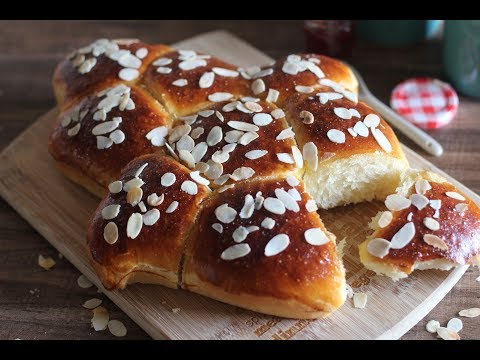 For more infomation >> Brioche très moelleuse, sans beurre sans lait ! بريوش خفيف بذون زبدة أو حليب - Duration: 2:50.
  For more infomation >> Critiqué pour sa visite au Taj Mahal, Emmanuel Macron réplique sec -[Nouvelles 24h] - Duration: 2:29.
  For more infomation >> Kia cee'd Sporty Wagon 1.4 CVVT X-ecutive - Duration: 1:01.
  For more infomation >> EPISODE 1 | Un Autre Monde Est Possible ? - Duration: 5:10.
  For more infomation >> Aurélien Enthoven victime d'antisémitisme : "Mes parents ont l'habitude..." - Duration: 2:00.
  For more infomation >> Paulo Dybala - Skills - Goals | HD | - Duration: 1:47.
  For more infomation >> Brigitte Macron : Une mauvaise nouvelle pour son anniversaire ? -[Nouvelles 24h] - Duration: 2:28.
  For more infomation >> Laeticia Hallyday « bouleversée » et « inconsolable » à l'écoute de l'album de Johnny - Duration: 2:48.
  For more infomation >> ReLy : Un quatuor qui bat à l'unisson - Duration: 1:14.


No comments:
Post a Comment